Ask your project. Dirac answers from the real numbers.
Dirac is the assistant built into the canvas. It reads the live project, answers in plain language, and asks you to confirm before it changes anything.
What do you want to do?
Jump straight to the answer
Overview
Dirac is the chat panel built into the canvas. It reads your project's live data — assets, wiring, commissioning progress, issues, schedule — and answers questions, reports status, and, with your confirmation, makes changes on your behalf. Dirac uses the same calculations as the rest of the app — the same scheduler, the same gate and exposure numbers Management View shows — so an answer from Dirac always matches what you see elsewhere in the app.
Opening Dirac
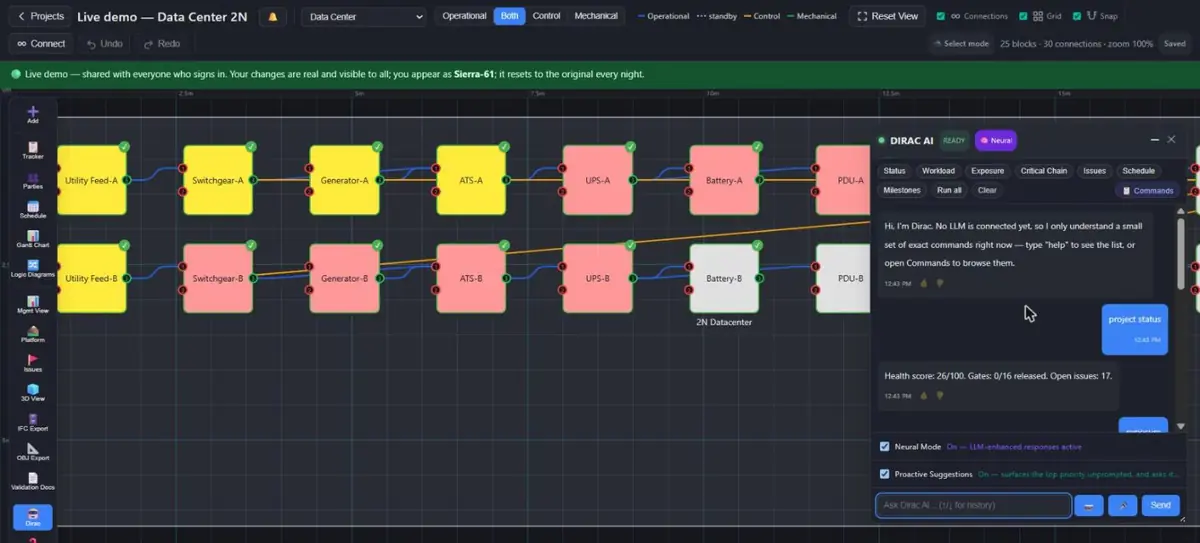 12345
12345- Quick questions: status, workload, exposure, critical chain, issues, schedule
- Commands: browse every phrasing Dirac understands
- The answer, from the live project
- Neural mode and proactive suggestions switches
- Type here; the up and down arrows recall earlier commands
About the Commands browser
The list you browse is a faithful reference for the full range of commissioning-industry phrasing Dirac is meant to eventually understand end-to-end. It is not a list of what works today — clicking an entry fills the input and sends it exactly like typing it yourself, and if that phrase isn't backed by one of the capabilities below, you'll get the same "command not recognized" response as typing something Dirac doesn't know. The 4 "Import & Data" commands are the one exception — see below.
How Dirac reads a command
Every message is routed through a tier ladder, cheapest and most predictable first. You don't pick a tier — this happens automatically:
| Tier | What it does | Cost |
|---|---|---|
| T0 | Exact regex rules against a curated set of phrasings. No network call. | Free, instant |
| Tier 1 | Keyword-overlap fallback — scores every capability's description against your words when no T0 rule matches. | Free, instant |
| Tier 2 | Local sentence-embedding similarity — a small model runs entirely on your device in the browser, with no server round trip, and ranks capabilities by meaning rather than shared words, so two phrasings with almost no literal overlap ("power everything down" vs. "turn off all generators") can still match. Fires when T0/Tier 1 land on no match or an ambiguous tie. | Free after first load (~23MB model, cached per browser) |
| Tier 3 | An optional general-purpose language model parses your sentence into a structured intent. Informational only — helps routing, never executes anything itself. | Small LLM call |
| T0.5 | An optional general-purpose language model, with full tool access to every capability below. Can reason across multiple steps and chain capability calls together (see "Multi-step commands"). | Full LLM call |
Talking to Dirac
Direct commands
Short, exact phrasings resolve at T0/Tier 1 with no LLM call — e.g. "set UPS-A duration to 5 days", "assign CX to L2 on Generator-1", "what's blocking handover", "management summary" (the whole management picture in one answer; add "as a page" to save it as a printable page).
Open-ended questions and requests
With Neural Mode on, anything else falls through to Tier 3 (parses your intent) or T0.5 (reasons and can act). Ask naturally — "why is Generator-1's exposure so high?", "are we ready for handover?", "what should I do next?".
Ask Dirac instead of reading the manual
You don't have to come here to look something up. Ask Dirac directly — "how do I sign off a stage", "what does L4 mean", "how do parallel capacity windows work", "how does the cable library work", "what does the fault level calculation assume" — and it searches the application's manuals (the Application Overview, Dirac, Scenario Testing, Engineering Calculations, Commissioning Tracker, VR Walkthrough, Management View, Scheduling, Permissions & Sharing, Cx Logic Diagrams and the FAQ)' real, current text live and answers with the actual matching section, not a memorized guess. This means an answer is only ever as stale as this manual itself: edit a manual and the very next question reads the update, with nothing else to keep in sync. (Yes, this paragraph is technically describing a feature that can read this same paragraph back to you — that's the point.)
What Dirac can do — the 50 capabilities
mutates capabilities change project data and are always staged for your confirmation first, on every tier that can reach them. Everything else only reads and reports.
| Capability | Type | What it does |
|---|---|---|
| Project status | read | Overall project snapshot. |
| Workload summary | read | Outstanding work per responsible party. |
| Explain exposure | read | Why an asset's downstream exposure score is what it is. |
| Critical chain | read | The longest unresolved prerequisite chain blocking a gate. |
| Open issues | read | Open issues, optionally filtered by severity. |
| Schedule summary | read | Current schedule status at a glance. |
| Upstream dependencies | read | What an asset is directly waiting on. |
| Assign responsible party | mutates | Assigns a responsible party to an asset/stage. |
| Set asset availability | mutates | Marks one asset available/unavailable. |
| Availability summary | read | How many assets are Available vs. not. |
| Bulk asset availability | mutates | Bulk availability toggle across every asset. |
| Build datacenter layout | mutates | Generates a canvas layout from a short description ("build 2N datacenter"). |
| Describe canvas | read | Summarizes what's actually on the canvas — assets grouped by equipment type, rooms, package-manager groups, and connections broken down by layer ("describe canvas", "what's on the canvas"). Read-only — distinct from "rearrange canvas" below, which changes the layout. |
| Rearrange canvas | mutates | Auto-tidies the canvas layout ("rearrange", "clean up the canvas") — Available assets, rooms, and package-manager blocks stay put. |
| Set asset duration | mutates | Sets an asset's commissioning duration in days. |
| Learned durations | read | Lists the duration corrections Dirac has learned per equipment type/stage. |
| Reset learned durations | mutates | Clears Dirac's learned duration history so it re-learns from scratch. |
| Set parallel capacity | mutates | Sets the project-wide max-parallel-tasks cap. |
| Parallel capacity windows | read | Summarizes current capacity overrides/windows. |
| Add capacity window | mutates | Adds a new time/phase-scoped capacity window. |
| What's blocking handover | read | Cross-references unreleased gates with their open issues. |
| Validate compliance | read | A readiness verdict — "not ready" is a normal, expected answer, not an error. |
| Suggest next action | read | Priority-ordered recommendation for what to do next. |
| Commercial summary | read | Counts of commercial milestones by status (not invoiced/invoiced/paid) — the independent Commercial layer, see the Management View Manual. |
| Create connection | mutates | Connects two assets on the operational or control layer ("connect UPS-A to PDU-1"). |
| BIM status summary | read | Same stats as the BIM Status Report popup — accepted/awaiting-acceptance counts, mains-on/control-on, open issues. |
| Self-test | read | "Test yourself" — runs Dirac's own routing test suite and reports a pass rate. Never executes a capability's handler as part of the check, so it can't mutate your project as a side effect. |
| Explain stage | read | Explains a commissioning stage ("what is L2", "what is DQ") or the full sequence, using this project's own mode-specific stage labels. |
| Outstanding by stage | read | Per-stage (L1-L4/DQ-PQ) breakdown of which assets haven't yet had that stage signed off. |
| Energization status summary | read | Bulk mains-on/control-on status across every asset — "check mains on all assets". |
| Build pharma facility layout | mutates | Generates a GMP pharma layout from a short description (WFI, cleanroom, sterile-fill, bioreactor train, etc.). |
| Open BIM status report | read | Opens the BIM Status Report modal in-app directly from chat (its own Print/Save-as-PDF button is inside) — or say "export bim status report" to Dirac to download the numbers as an Excel file instead. |
| Export BIM status report | read | Downloads the BIM Status Report as an Excel (.xlsx) file — the canvas sidebar's BIM Report rail button was removed, this chat command is now the direct-download path ("export bim status report", "download bim report"). |
| Return selected to normal | mutates | "return selected to normal" — the same return as "return to normal", but only for the assets selected on the canvas (Ctrl/Cmd+click or Shift+click anywhere, or Shift+drag a box); or by name: "return Switchgear-A and Switchgear-B to normal" / "return to normal for Switchgear-A, Switchgear-B". A bare "return to normal" stays project-wide. Running generator sets are stopped only if selected too. See the Scenario Testing manual. |
| Breaker failure protection (BFP) | mutates | "breaker failure on feed from A to B" — the fault is on the feed between A and B: the protection trips both ends, the breaker at A does NOT open (it stays closed, so bus A keeps feeding the fault), the breaker at B opens, so B is isolated and transfers to its other source like after any trip. Breaker-failure protection then trips every other breaker of bus A at once, after its operating time ("set breaker failure delay to 0.3 s", default 0.2 s). What is locked out is a site setting (set breaker failure lockout to upstream | all | none, default "upstream"): the breakers that can bring power into bus A from outside (sources, ties, its standby incomers) get 86, the feeders facing downstream trip only, so "return to normal" closes them again once the bus is live; "all" = 86 on every one; "none" = plain trips, nothing locked out. A utility feed with nothing above it in the drawing goes dead (the breaker above it trips). The failed breaker is flagged "failed to trip" and is out of service — no close, by hand or by the scheme — until "clear all breaker failures" after the repair. Not the same as fail to open / fail to close, which are command failures. Works in either scheme mode. |
| Switching Playbook (site settings) | mutates | "show playbook", "turn cerberus off" / "… on" (the same for prometheus and theseus), "set playbook to full" / "… to generic" — the named scheme rules taken from the site's official sequences of operation, each ON by default and each a site setting: Cerberus — generators start only when every board the generator bus serves has lost its supply and none has another way back (a one-board problem is handled by the other board and the RMU ring self-healing); Prometheus — a breaker locked out by an 86 is not something the operator could simply close; Theseus — a stuck breaker blocks only the paths through its own device. A rule that is off = the generic behaviour of earlier versions. Stored with the project; the digest names the rules that are off. The older "set official soo rules to legacy | official" is kept as the generic / full preset. |
| Hades — hold the start of a set | mutates | "hold start of GEN-1" / "hold start of all" / "release start of GEN-1" — the operator's hold on a generator set: a held set is left out of every automatic start (a loss that needs the generators starts the others and names the held ones) and "start GEN-1" is refused until released. Set it before the loss; a scenario is computed in one go. Stored with the project; the digest lists the held sets. |
| Breaker-failure lockout (site setting) | mutates | "set breaker failure lockout to upstream" / "... to all" / "... to none" — what breaker-failure protection locks out on the other breakers of the bus whose breaker failed (see the row above); "set breaker failure delay to 0.3 s" sets its operating time. Stored with the project; the digest says when they are not the default. |
| Reset all 86 / clear all breaker failures | mutates | "reset all 86" puts every relay in Manual back to Automatic (breakers stay as they are; a Manual tick set by hand is included, and is listed); "clear all breaker failures" removes the failed-to-trip flag. Do both after the repair, then "close feed …" and "return to normal". |
| Run all commands | read | "run all commands" (also the Run all chip in the Dirac panel) — runs every switching command (utility losses, the scheme in Manual, start / close / stop by hand, fail to open / fail to close, protection trips, the questions) through the real router and capabilities on a throw-away copy of the project, from the project as it is now, and downloads ONE text log: for each step how the command was read, what it answered, and the state afterwards. A refusal is marked X and counted (it can be the correct answer). The live project is never changed. Send the log for diagnosis. |
| Scheme selector | mutates | "set scheme to manual" / "set scheme to automatic" (also "manual mode", "automatic mode") — Manual: a loss starts no generator set, closes no transfer feed, opens no dead incomer, and nothing retransfers by itself; the operator does it by command. Automatic is the default. Stored in the project's switching defaults. See "Operating by hand" in the Scenario Testing manual. |
| Start / stop generator sets | mutates | "start GEN-1, GEN-2" / "stop GEN-1" (also "start generator …", "stop the generator …") — a started set feeds only through closed breakers (Dirac lists the open breakers out of it). A stop is all-or-nothing and is refused, with the breakers to open first, if any asset would lose mains without the set. Cool-down is not modelled. |
| Manual transfer on one breaker | mutates | "tick manual transfer on feed from A to B" / "untick manual transfer on feed from A to B" — the canvas Manual tick as a command: the scheme never closes or re-closes that feed by itself. |
| What is going on | read | "what is going on" / "what happened" / "where are we" / "sitrep" — the live picture read from the project and the real engine, not from a canned text: how many assets have mains and which do not, which utilities are live, which generators run (stopped sets are shown as standby, not as a loss), the transfers in effect, breaker failures, what "return to normal" would do right now (a dry run, nothing is changed), what is selected on the canvas and the last thing Dirac did. The same picture is sent to the language model, so the model and the app cannot disagree about what is happening. |
| Why is this asset on / off | read | "why is Switchgear-A off" / "why is the generator bus without mains" / "why are the generators still running" — the asset's own feeds, which carry and which do not (open, standby, not available, source dead), and where the chain upstream ends (a dead utility, a generator set that is not running). For the generators it uses the same dry run of "return to normal" and gives the engine's reason for each feed it would hold back. |
| Why (last result) | read | "why" / "why not" / "why did that happen" — the last thing Dirac changed or refused this session: what it did, what the engine deliberately held back and the engine's own reason for each, and which assets ended up without mains. The record lives in the open panel only and is cleared when the project changes; nothing is stored or sent anywhere. |
| Export simulator / replay | read | Downloads this project as one self-contained .html, no server. "export simulator" — the same switching engine and screen as the app (map, click an asset or a line, Run all commands), the project as it is now, for your own use. Add "for <name>" to share it: the name is then printed as a watermark with a confidentiality line, the code is obfuscated and it stops opening after 30 days ("expires in 14 days", "never expires", "anonymised", "with manual" change that). "export replay" — only the recorded scenarios, played back on the diagram, no engine inside. Both are in the command list under Switching. See the Scenario Testing manual, "Sending the simulator to someone else". |
| Short-circuit test calculator | read | "short-circuit test for Transformer-A" — the reduced-voltage impedance test of one transformer from its nameplate data: currents on each winding at the injection voltage, the voltage that drives rated current, winding voltages (a delta winding sees the full line voltage), vector group, 87T CT check, every step written out. Downloads the calculator page pre-filled; the page recomputes as you edit and switches between the 2- and 3-winding tests and the two back-to-back tests. Missing nameplate values are listed in the answer and left at the example on the page. Add "for <name>" for a watermarked, expiring copy. |
| Back-to-back test calculator (87L) | read | "back-to-back test Transformer-A with Transformer-B" — two transformers paralleled on a common bus through two lines: inject A's LV, short B's LV. Loop impedance (magnitude sum, and the complex sum when X/R is given), potentials along the loop, induced voltage on open windings of 3-winding units, 87L per line. Dirac finds the common bus on the canvas and takes each line's R and X from the connection when it carries length and R/X per km. |
| Transformer calculator (blank) | read | "transformer calculator" — the same page with the example nameplate, for any transformer; Save / Load keeps a configuration file. |
| Nameplate data | read / mutates | "what data is missing for Transformer-A" lists the nameplate values the asset carries and what the tests still need; "set nameplate uk_pct of Transformer-A to 11.5" stores one value (ids: S_VA, U_HV_V, U_LV_V, uk_pct, xr, hvConn, lvConn, lvClock, I_HV_rated_A, I_LV_rated_A, ct_HV_primaryA, ct_LV_primaryA, tap anchors; 3-winding: U_LV1_V, U_LV2_V, Z_HL_pct, Z_HT_pct, Z_LT_pct ... — add "schema transformer-3w" to choose the 3-winding schema). The same values are edited in the asset panel's Engineering data block and in bulk through the Eng … columns of the Asset XLSX (Commissioning Tracker manual, "Engineering data"). |
| Fault level at a bus | read | "fault level at Switchgear-A" / "short-circuit current at LV-Board-1" — the prospective three-phase fault level from the drawn single line, simplified IEC 60909 (c = 1.1, far from generator, no motor contribution, taps nominal): along every live source path the utility's short-circuit power (Sk_MVA on the Utility-Feed asset, X/R blank = 10), a generator's x″d, each transformer's uk % (X/R blank = a typical value by rating) and each connection's R/X (length × Ω/km) in series, the sources in parallel; I″k, S″k, the peak i_p when X/R is known, and the comparison with the bus's rated short-time withstand (Ik_kA). The working is printed step by step; anything missing is listed by asset with the parameter to set, and the answer is held rather than guessed. |
| Voltage drop to an asset | read | "voltage drop at PDU-1" (add "pf 0.85" for another power factor; default 0.9) — the drop along the run from the nearest transformer (its LV voltage) to the asset: every connection with a length and R/X per km carries the stated Load MW beyond it, ΔU = √3·I·(R cos φ + X sin φ) per run, total against the 5 % limit (IEC 60364-5-52). Connections without R/X are named and skipped. The run data lives on the connection panel ("Run") and in the Eng columns of the Connections XLSX. |
| Loading of a transformer / board | read | "loading of Transformer-A", "how loaded is Switchgear-A" — the stated Load MW behind the asset against its rating: S_VA for a transformer, generator or UPS, √3·Un·In for a board, the Generator Power Rating as a fallback; in %, MVA and A, with the headroom. "loading of Transformer-A if Transformer-B is lost" adds the load behind B that actually lands here: the scenario engine decides it (automatic transfers close, standby feeds on separate inputs pick up their loads, generators start), and loads that only a manual tie could pick up are listed as held, not counted. Cable runs without datasheet R and X are estimated from the stated size, material and parallel runs (a typical-values library, flagged "Assumed" in the answer - replace with the datasheet for records). |
| Generator step-load check | read | "step load check for Generator-1", "can Generator-1 take the load" — whether the set accepts the load behind it in one step: stepLoad_pct of its rated kW (S_VA · pf) is the largest block (ISO 8528-5 class); when the load is larger, a first-fit staging of the loads and the single blocks too large for any step. No engine transient is modelled. |
| UPS autonomy | read | "autonomy of UPS-A", "how long will UPS-A run" — battery runtime at the stated load behind the UPS and at full rated load, from battery_kWh, the usable depth of discharge (blank = 80 %) and inverter efficiency (blank = 94 %), against required_min when set (IEC 62040-3 stored energy time, energy-balance estimate - use the vendor discharge table for the acceptance record). |
| App state summary | read | Quick summary of canvas state — block/connection counts, Neural Mode status. |
| Stage status for an asset | read | Whether a specific asset's stage can be signed off yet, and if not, exactly what it's still waiting on. |
| Cascade update | mutates | Re-evaluates the whole topology and applies any downstream mains/control changes the cascade engine finds are now inconsistent. |
| Simulate scenario | mutates | "What if" — turns a feed on or off (with optional MW load and auto-selected backup generators) and cascades the effect. A loss runs on a clock when delays are set (loss confirmation, transfer delay, generator start) and the answer ends with a timeline and an outage summary — see "Time" under Standby feeds. |
| Energize downstream | mutates | Validated bulk energisation: "energize downstream from Utility-A and Utility-B" (or just "energize downstream" to start from every utility feed and tie — generators stay off unless you name them) ticks mains on everything reachable over primary, available connections, in upstream order, through the same validation as a single turn-on — never a force. Assets without their final stage signed off are held back and listed; blocked assets come back with the engine's reason. Ends with the paralleling check. The one command to run after an XLSX import of assets with their stages ticked. Say "energize control downstream …" for the control layer. |
| Switch asset to source | mutates | "switch Switchgear-A to Utility-B" / "prefer Utility-B on Switchgear-A" — the per-asset transfer: that feed becomes primary, every other feed into the asset opens (standby); then what lost power is cascaded off, what the new feed reaches is re-energised (validated, L4 gate kept) and the paralleling check runs. Open transition unless the target feed's transfer scheme says closed (then: a momentary parallel, no outage — see "Transfer schemes"). |
| Open / close feed | mutates | "open feed from RMU-2 to RMU-3", "close the breaker from Switchgear-B to RMU-4" — one breaker by its two ends. A ring's open point moves with one close and one open; close before you open and the check reports the loop. |
| Normal state of a feed | mutates | "mark feed from RMU-2 to RMU-3 as normally open" / "… as normally closed", "set open point at RMU-2 to RMU-3" — the drawing's normal state as a command: the same as the Standby tick in the Feeds list or the Primary column of the import; sets the breaker accordingly and clears every memory and marker on the feed. Use it after switching by hand, when "open feed" has marked a breaker "opened by hand" that the drawing in fact has normally open. |
| Open points | read | "open points" / "standby feeds" / "switching state" — every normally-open feed (marked manual or not available where it applies) and, for every asset with more than one feed, which one is primary. |
| Return to normal | mutates | "return to normal" / "restore open points" — undoes the automatic transfers, feed by feed per its transfer scheme: open transition = re-open the transfer feed, then re-close the incomer the transfer had opened (a switching-instant outage, counted); closed transition = re-close the incomer first, then open the transfer feed (no outage). Reports whatever it had to leave as it was, with the reason. See "Memory of the preferred open point" and "Transfer schemes". |
| Trip feed / trip 86 | mutates | "trip feed from Switchgear-A to RMU-1" — protection opened the breaker (it may be re-closed by a transfer or by hand). "trip 86 on feed from Switchgear-A to RMU-1" / "lockout feed from …" — lockout: opened AND in Manual, no automatic transfer re-closes it until "reset 86 on feed from Switchgear-A to RMU-1". |
| Switching model | read | "switching model" / "switching assumptions" — the project's actual transfer scheme (default + every feed with its own), then the legend: what every switching and scenario answer assumes and what is not modelled. |
| Fail to open / fail to close (FTO / FTC) | mutates | "fail to open feed from A to B" (remote: the second attempt works one retry delay later) / "… in local" (one attempt, stays closed) / "… in remote, both coils" (stays closed, the device is isolated) / "fail to close feed from A to B" (never closes, not repeated without manual intervention, nothing locked out) / "clear fail to open and fail to close on feed from A to B" / "set breaker retry delay to 2 s". A transfer that needs a stuck-closed breaker open is blocked (Transfer Control Lockout); see the Scenario Testing manual, Breaker failures. |
| Transfer scheme defaults | mutates | "set default transition to closed with 2 s window" / "set default transition to open"; "set default retransfer to automatic after 30 s" / "set default retransfer to manual" — the project-level scheme every standby feed inherits unless it carries its own. See "Transfer schemes". |
| Parallel feeds | read | "parallel feeds" / "paralleling" — every asset with two live feeds: paralleled when they come from different root sources (two utilities, utility + generator bus), looped when the same source arrives twice (a ring closed with no open point), and ℹ️ closed transition in progress when one of the feeds carries the closed-transition scheme. Read-only; the same report is appended to every scenario restoration. |
| Create room | mutates | Adds a new room block to the canvas. |
| Create asset | mutates | Adds a new asset block to the canvas. |
| Delete asset | mutates | Permanently removes an asset block from the canvas. |
| Find power issues | read | Runs the cascade engine read-only and reports any power-path problems it finds, without applying changes. Also checks physical presence, reporting any asset with no currently-present power source — distinguishing an asset whose path traces back to a source marked NOT PRESENT (not Available) from one that was never wired to any source at all — even when mains/control flags are internally consistent. |
| Enter / exit scenario mode | read | "enter scenario mode", "start scenario as built", "switch scenario to as designed", "exit scenario mode". Opens or closes the private Scenario copy (see the Scenario Testing Manual). Nothing is written to the project, so it is not staged for confirmation. While a scenario is open, "what is going on" reports it first. |
| Section status | read | "which sections are ready to tag", "section status". Reads tagging checklists as sections and reports, per section, whether it is gathering, ready to tag, tagged or signed, and what each section is still waiting for. Does nothing when the project has no tagging checklist. |
| Run validation | read | Full cross-asset validation pass — power path, control loop, and prerequisite-order checks in one report. The "Power paths" section includes the same live-presence check as "Find power issues" above — including the never-wired case — matching what the Gates tab and Scheduler banner show. |
| Force-check mains/control | mutates | A true force, with the same semantics as Force Sign-Off: unconditionally sets a property ON for every asset, bypassing all energization prerequisites, and raises one issue per asset that would have failed real validation — so the bypass is documented, never hidden. Can be optionally targeted at just mains or just control: "force check mains on all assets" touches mains only, "force check control on all assets" touches control only. The layer and the direction are both required: a phrasing that names neither ("force everything") is refused instead of defaulting to forcing both layers on, and the word-order variants ("force mains off on all assets", "force turn off controls on all assets", "force turn off mains and control on all assets") are accepted. Turning off bypasses nothing, so the plain "turn off control on all assets" is the same reset. Two companion reset commands undo a force-on test without fighting the normal L4/L3 permission gate on the checkboxes: "force turn off mains on all assets" and "force turn off control on all assets" unconditionally set that property OFF for every asset — no validation involved and no issues raised, since turning off is always safe. Built for cascade/scenario stress-testing. None of these auto-run a cascade update afterward — run "cascade update" separately to see the state snap back to validated reality. |
| Dependency path | read | The full multi-hop upstream chain an asset's mains/control depends on, not just its direct prerequisite. |
| Why is this configured this way | read | Reads an asset's recorded decision history — who/what changed it, when, and why — instead of guessing from the current layout. Part of Full Semantic Memory. |
| Cross-project scenario | read | "What happens elsewhere if this asset fails" — simulates a turn-on/turn-off across every project in this project's Group via its boundary connections. Only appears when the project belongs to a Group of 2+ projects. |
| Suggest temporary generator placement | read | Finds every asset or joint-final-test group whose power path traces ENTIRELY to a source that will never be signed off in this project (e.g. an out-of-scope utility feed), and names the best insertion point(s) for a temporary generator to parallel-feed. Read-only — describes the fix, doesn't apply it (see "Place cycle-breaking generator" below for the raw-cycle case, which does). |
| Place cycle-breaking generator | mutates | For a genuine circular dependency (a loop with no real power source anywhere, not just an out-of-scope one), finds the actual minimal loop and PLACES a new temporary generator to break it: mints the asset, flags it Temporary, force-signs-off all four stages (so it starts fully complete — no checklists/issues to work through), and wires it into the loop. Staged for confirmation like every other mutating capability. |
| Explain target date risk | read | For every asset with a target completion date at risk, computes the true best-case (critical-path) duration and compares it to the working days actually available. States plainly whether the date is achievable at all, and if not, names the longest-duration tasks on that specific path as the concrete shortening candidates. |
| Look up manual help | read | Answers "how do I...", "what does X mean", "help with..." questions by searching the ACTUAL current text of the application's manuals (the Application Overview, Dirac, Scenario Testing, Engineering Calculations, Commissioning Tracker, VR Walkthrough, Management View, Scheduling, Permissions & Sharing, Cx Logic Diagrams and the FAQ) live, at answer time — not a memorized summary. Returns the real matching section's heading and text, plus a pointer to the next-best match. See "Ask Dirac instead of reading the manual" above. |
| Logic diagram | mutate (creates a diagram) | "logic diagram for X", "upstream logic of X" / "what gates X", "downstream logic of X", "control logic of X" / "field logic of X", "logic diagram for all transformers", optional "depth N". X is an asset, package, room, schedule group or equipment type. Creates a scoped derived Cx Logic Diagram (asset × stage gates derived from the live Scheduler graph — never the whole project), opens Logic Diagrams on it, and replies with the same logic in words in the project's vocabulary. Same scope twice re-opens the existing diagram. See the Cx Logic Diagrams manual, "Derived logic". |
| Plan this with me | read → guided | "plan this with me" / "help me plan the project" / "guide me through the plan" opens Dirac's guided planning interview — see Plan this with me below. The command itself changes nothing; the interview ends with a review and only "apply" draws the plan on the canvas. |
Plan this with me — the guided planning interview
For people who are not commissioning or electrical specialists — or for any project in Project Management Only mode — the canvas can be built by answering questions instead of by placing blocks and drawing wires. Type plan this with me (also: "help me plan the project", "let's plan the work", "guide me through the plan", "interview me"). Dirac then asks, one question at a time:
- Work items. "List the work items" — comma-separated or one per line, over as many messages as you like; say
donewhen the list is complete. If the canvas already has items, name one to reuse it, or sayuse existingto start from all of them. - Order of work. For each item: "What must be finished before X can start?" Answer with item names (comma-separated) or
nothing. Each answer becomes a wire on the Field layer (the PM-Only name; "Operational" in the engineering modes). Naming something that isn't on the list yet simply adds it — and Dirac will ask about it too — so you never need a perfect list up front. - Decisions and approvals. For each item: "Which decision, approval or release must be in place before X can proceed?" e.g. "Budget approved", "Permit to work", "Design sign-off" — or
none. Each becomes a small decision block wired to the item on the Office layer ("Control" in the engineering modes). Naming an existing work item instead makes that item the gate. - Review. Dirac summarises items, Field order and Office gates. Say
applyto draw it, orcancelto discard. Nothing is written to the project before "apply".
On "apply" Dirac creates the missing blocks (laid out left-to-right by dependency depth, decision blocks in a row above), sizes their ports to the wires, marks them in scope (the canvas "Available" tick), and draws every wire on distinct ports. Existing assets named in the interview are reused, never duplicated. Then open the Schedule and press ⚡ Reschedule: the sequence, the critical chain, Gates and the Management View all derive from those wires exactly as they do for an electrical topology — the office/site logic is the same graph with different words (see the Commissioning Tracker manual's "Layers in Project Management mode").
cancel is the way out. You can run the interview again later to add more items; it always offers the current canvas as reusable items.Full Semantic Memory
Every asset now has a History & Rationale panel — a running, timestamped log of why it's configured the way it is. An entry is added whenever: you add one manually ("+ Add Rationale"), an import brings one in, or Dirac itself makes a mutating change on your behalf. Each entry records who/what made the change, when, and (when available) a plain-language reason.
Ask Dirac why is Bioreactor-1 configured this way? (or "why is X wired/connected/set up this way") and Dirac reads that real recorded history back to you, newest first — not a guess reconstructed from the asset's current position and connections. If nothing has been recorded yet, Dirac says so plainly and points you at "+ Add Rationale" rather than inventing an explanation.
Cross-Project Cascade
For projects that belong to a Group (see the Management View / Permissions manuals for Groups), a Group Combined View lets you draw boundary connections — the real electrical/control links between one project's assets and another's, e.g. a WFI Generation Room feeding a Sterile Filling Suite. Once at least one boundary connection exists, "Run Cross-Project Scenario" in that panel simulates turning a feed on or off and shows what changes in every project the group touches, not just the one you're looking at.
Dirac exposes the same functionality as a chat command — it only appears (and only ever will respond) once the open project is in a Group of 2+ projects; in an ungrouped project this phrasing correctly falls through to "not sure what you mean" rather than offering a capability with nothing to bridge. Ask with generic wording for the other side — "what happens elsewhere if WFI-System goes down", "what happens to the other project if X fails" — since only that generic phrasing is recognized by the fast-matching tiers today; naming the target project explicitly by name currently isn't matched by a fast-path rule and falls through to slower tiers (still answered, just via a different tier).
Standby feeds, open points and paralleling
A connection on the operational layer can be marked Standby feed (normally open) in its connection panel on the canvas (the "Primary" column of the Connections XLSX does the same in bulk: Yes or blank = primary, No = standby). A standby feed is drawn dotted. It is the breaker that sits open under normal conditions — the second utility incomer of a main-main board, the normally-open point of a ring main — and the cascade engine treats it exactly like a Not Available cable: it carries nothing, so an asset whose only feeds are standby cannot have mains on. Every connection you already had, and every new one you draw, is primary.
Three things follow, and nothing else changes:
- Preferred source is simply the primary feed; preferred open point of a ring is the one standby connection in it. Moving the open point is two flag flips.
- Transfer. When a scenario loses a source ("simulate loss of Utility-A", "turn off mains in Utility-A and reevaluate"), the restoration may close a standby feed to bring a load back. The answer lists every standby feed it closed under "Transfers", and the flip is saved with the scenario result, so a later cascade update does not undo the restore. A loss is always break before make — the incomer that lost the voltage opens first, then the alternate closes — whatever the feed's transfer scheme says, because the loss may be a false signal.
- Paralleling. Two live primary feeds into one asset from different root sources is paralleling. An operator cannot create it by accident: "close feed" onto a bus that is already live from another live source is interlocked and refused — unless the feed carries the closed-transition scheme, when the close is accepted as the first step of a closed transition and the answer tells you which feed to open within the window (see "Transfer schemes" below). "parallel feeds" reports what the drawing itself contains or a timing race produced, and every restoration ends with the same check. The same source arriving twice over a ring with no open point is reported as a loop, on the bus where it happens. Several generator sets on one generator bus are what a paralleling switchgear is for — that is shown as an information line, not as a warning.
Switching per asset. The state lives per connection, but you operate it per asset. Select an asset on the canvas: its panel lists its Feeds — every operational input with its source and a Primary / Standby toggle, plus a "manual transfer" tick on a standby feed. In chat: switch Switchgear-A to Utility-B (or prefer Utility-B on Switchgear-A) makes that feed primary and opens the others; open feed from RMU-2 to RMU-3 / close feed from RMU-2 to RMU-3 work one breaker by name; open points lists the switching state. Opening a breaker by hand is a loss of voltage for everything behind it, and the relays downstream cannot tell an operator's open from a trip, so the automatic scheme answers exactly as after a trip — on the clock, Manual-mode feeds left for the operator, the opened breaker itself left open; the answer carries the restoration and the timeline. To switch by hand without the scheme reacting, put the relay in Manual first, as on site. The Feeds list and open points mark such a feed "opened by hand or trip": its normal state is closed, and a transfer that closes it again restores the normal state without remembering anything. When a by-hand sequence ends with the drawing's own open point open, tell the model so — mark feed from RMU-2 to RMU-3 as normally open (or the Standby tick): that is the design statement, and it clears the marker. Every switch is followed by the same re-evaluation: what lost its only carrying feed is turned off, what the new feed reaches is re-energised through the normal validation with the final-stage gate, and the paralleling check runs — the answer lists all of it.
Manual transfer. A standby feed can be marked "manual transfer" (the relay's Manual mode). A loss-of-source scenario will then not close it on its own; the answer lists it under "Available for MANUAL transfer" and you close it yourself. Generators are the last source: a load that an operator could restore by closing such a manual feed from a live utility is never put on generators by the scenario — it waits for you. Without the mark the scenario transfers automatically. This is the only transfer policy modelled; timers, sync-check and dead-bus rules wait for the design sequence of operation.
Rings: a link that carries power both ways. A connection is drawn in one direction, and for scheduling that is the right one: the ring main unit upstream is commissioned first. For energisation a ring cable works in either direction — once the open point closes after a feeder is lost, power comes back through the ring from the far end, against the drawn arrow. Mark such a link Carries power both ways (ring link / tie) in its connection panel (the "Both Ways" column of the Connections XLSX does it in bulk; Yes = both ways). It shows a ⇄ at its midpoint on the canvas, both of its ends list it under Feeds, and the engine lets either end feed the other. Two neighbours cannot hold each other up this way — the circular-dependency guard insists on a real live source behind them — so a ring with a dead feeder goes dark until the open point closes, then comes back from the other side. Closing a ring's open point with both feeders live is reported as paralleling. The drawn direction, ports, scheduling and sign-off are not affected.
Memory of the preferred open point. The standby feed is the preferred open point. When an automatic transfer closes it — a loss-of-source scenario, or a generator paralleling onto its bus — the breaker is closed but the app remembers that this was the normal open point: the asset's Feeds list shows "closed by a transfer — preferred open point", and open points lists it under "Preferred open points currently CLOSED". The transfer also OPENED the incomer that lost its source (break before make — the Feeds list shows "opened by a transfer — normally closed", open points lists it under "Normally closed feeds currently OPEN"), so a returning source never meets a closed breaker. return to normal undoes both as an open transition: step 1 re-opens every transfer feed whose load will be live again once its incomer is back, generator-fed ties first; step 2 re-closes the incomers whose source is live and whose bus has no other live feed at that moment; then the running generator sets are stopped together and their breakers re-opened, because the utility takes priority over the generators (load decides: switchgear, transformers, boards and busbars are distribution, not load; turn on mains in <utility> does the same automatically in the Automatic scheme) — but only if no load that is on would lose its mains without them (otherwise the sets stay running and the answer says what depends on them). Everything that was running through the transfer feeds is without power for the switching instant — the answer counts it — and nothing is ever closed onto a live bus. It reports what it had to leave as it was and why — close the missing source first (e.g. "switch Switchgear-A to Utility-A" once the utility is back), then say it again. What you do by hand is a preference, not a transfer, and is never remembered: "switch", "close feed", "open feed", the Standby tick, the Feeds list toggles and an imported Primary value. So a breaker you closed yourself in Manual mode you also open yourself ("open feed from Utility-B to Switchgear-A", or "switch Switchgear-A to Utility-A"); a feeder you opened for a test and closed again leaves no trace; and opening a breaker by hand also drops any remembered open point on the same asset's other feeds, because you have just chosen where the open point is. Whether the return is automatic, and whether it is an open or a closed transition, is the feed's transfer scheme — the next paragraph.
Transfer schemes. The relay's programme is data on the drawing, not an assumption of the model. A loss of a source is always break before make — the loss may be a false signal (a VT fuse, a stuck contact) while the bus is in fact live, so the incomer that lost the voltage opens before the alternate closes, under every scheme. What the scheme governs is every transfer made while both sources are live: the retransfer when the preferred source has returned, an operator's "switch", a "close feed" onto a live bus. Each standby feed can carry its own scheme (its connection panel under Transfer scheme, or the Connections XLSX columns "Transition", "Parallel Window (s)", "Auto Retransfer (s)", "Priority"), and the project has a default every other feed inherits (set default transition to closed with 2 s window / set default transition to open, set default retransfer to automatic after 30 s / set default retransfer to manual). Nothing set means open transition and manual retransfer — how every project behaved before the scheme existed. Transition: open = break before make, a switching-instant outage (counted); closed = make before break — the preferred feed closes onto the live bus, the two sources are paralleled for the parallel window, then the transfer feed opens: no outage, which presupposes the design verified synchronism (a 25 sync-check, or the same grid on both sides). "return to normal", "switch" and the interlock all read it; while the two feeds are closed, "parallel feeds" reports a ℹ️ closed transition in progress with the window, not a fault (the Feeds list shows "closed transition in progress" on the feed until the other one is opened) — a parallel on a feed without the scheme, or on a bus whose two incomers are normally closed by design, stays a fault. Auto retransfer: with a value, the transfer feed returns to normal by itself, that many seconds after the preferred source has come back ("simulate … on" / "turn on mains in Utility-A" reports "Automatic retransfer"), in the order the transition says; blank = manual, the operator says "return to normal". Priority: among several standby feeds into one bus, the lowest number closes first on a loss; blank = the engine's order (fewest breakers, shortest delay, shortest path). switching model prints the scheme the project actually uses — the default and every feed with its own — before the legend, so the legend never pretends a scheme the drawing does not carry; the Feeds list tags a feed's own scheme, and open points states the default.
Generators and load. A rating means two different things depending on what carries it: on a declared power source (utility feed, generator) the asset panel's Generator Power Rating is generating capacity; on anything else — transformer, switchgear, a row — the panel offers Load (MW) instead, and that is demand. The BIM rated power can be copied into whichever applies with one button ("Use as Generator Power Rating →" / "Use as Load (MW) →"); the Assets XLSX carries both as "Generator MW" and "Load MW". When a loss scenario has to fall back on generators and the command states no load, the start is sized from the sum of Load (MW) over the de-energised assets: enough sets to cover it plus one spare — the running number is always N+1, and the answer warns when the spare is not available; when that sum is zero — no load data — every available generator is started, because generators are the last possible source. In every case the generator bus takes load when the whole started set is ready. The answer says which of the three applied.
Time. A loss-of-source scenario runs on a clock. Three optional delays, all in seconds and all blank (instantaneous) until you set them: on a source that can be lost (a utility feed, a tie), loss confirmed after — how long the loss must persist before transfers start (the relay's 27 pickup); on a standby feed, transfer delay — from confirmation to that breaker closing (in the feed's connection panel, or the asset's Feeds list, or the "Transfer Delay (s)" column of the Connections XLSX); on a generator, start → ready — from the start command to the set being able to take load (asset panel next to the power rating, or the "Start Delay (s)" column of the Assets XLSX). With a stated load ("simulate loss of Utility-A and Utility-B with 20 MW load") the generator bus takes load only once enough started units are ready, and every further unit parallels onto the running generator bus as it becomes ready. The answer then ends with a Timeline — one line per instant: lost, confirmed, generators started, ready, breakers closed, assets back — and an outage summary (how many assets were dark for how long, and the longest). When nothing has a delay the answer is the same as before, with a note that every transfer was instantaneous. The clock models switching and starting only: no synchronising, inrush or protection timing — those stay in the power-system study.
What the switching model assumes — and what it does not pretend to know
The same text is what switching model prints, and every switching answer ends with a one-line pointer to it. It is here so that no result pretends to be more than it is.
- Loss of a source is ALWAYS break before make. A loss may be a false signal, so an automatic transfer OPENS the incomer that lost its source first, then CLOSES the alternate — whatever the transfer scheme says. The price is a switching-instant outage, reported as a count.
- The transfer scheme is data on the drawing, not an assumption. Each standby feed can carry a scheme (open or closed transition, parallel window, automatic retransfer delay, priority) or inherit the project default; the default of the default is OPEN transition. Open transition: "return to normal" and "switch" OPEN the transfer feed, then RE-CLOSE the preferred one (a momentary outage). Closed transition — allowed ONLY when BOTH sources are live (a retransfer or an operator transfer, never a loss) — closes the preferred feed onto the live bus first, then opens the transfer feed within the parallel window: no outage. "switching model" prints the scheme this project actually uses.
- Paralleling is interlocked, and otherwise a fault. "close feed" onto a bus that is already live from another live source is refused, as the programmed interlock would refuse it — unless the feed's scheme is closed transition, when the close is accepted as the first step of a closed transition and the other feed must be opened within the window (reported as ℹ️ closed transition in progress). Otherwise open the other feed first, or "switch". "parallel feeds" therefore reports what the drawing itself contains (two NC incomers in the design), a closed transition in progress, or what a timing race could produce; the one non-fault is several generator sets on a generator bus, shown as ℹ️ information.
- "simulate loss of X" = the source disappears with the automatic scheme armed. After the loss is confirmed (the source's "loss confirmed after"), each automatic standby feed on a restoration path closes after its transfer delay; Manual-mode feeds are listed for the operator and never closed. Generators are the last source: no set starts for a load that an operator could restore by a manual close from a live utility; otherwise the set is sized N+1 from the stated MW, from the de-energised assets' Load MW, or all sets when no load is known. A generator is the only source the scheme can start: a utility feed or tie-in that is off is lost until "turn on mains in X". A dark generator bus with nothing behind it is not a reason to start sets.
- "turn on mains in X" = the source returns: it is live on every breaker that was never opened, so everything reachable through closed feeds comes back (validated, L4 kept, no breaker closed — a transfer in effect stays in effect until "return to normal" or its automatic retransfer).
- "trip feed from A to B" = protection opened the breaker: it stays open until closed by hand or by an automatic transfer. "trip 86 on feed from A to B" = lockout: opened AND in Manual — no automatic transfer re-closes it until "reset 86 on feed from A to B" (or Manual unticked in the Feeds list).
- "open feed", "close feed", "switch X to Y" are operator actions: a change of preference, never remembered, never undone by "return to normal"; a close onto a live bus is interlocked (refused) unless the feed's scheme is closed transition. An operator's "open feed" is a loss of voltage for everything behind the breaker, and the relays downstream cannot tell it from a trip: the automatic scheme answers exactly as after a trip (Manual-mode feeds excepted) — put a relay in Manual first to switch by hand without the scheme reacting. A feed opened by hand or by a trip is normally closed: a transfer that re-closes it restores the normal state and remembers nothing. The drawing's normal state itself is set with the Standby tick or "mark feed from A to B as normally open / normally closed" (clears every memory and marker on that feed).
- "return to normal" undoes automatic transfers only, feed by feed per its scheme (open transition = momentary outage, closed transition = no outage), and never opens a breaker whose load would stay dark, closes one that would parallel two sources outside a closed-transition scheme, or opens the breaker of a running generator set (the generator controller stops the sets — "turn off mains in set" — not a retransfer; a stopped set's breaker is re-opened like any transfer feed) — those are listed with the reason. A feed with "automatic retransfer after N s" returns to normal by itself when its source comes back ("simulate … on"), after N s; other feeds wait for the operator.
- Fail to open / fail to close (FTO / FTC) are test inputs on a breaker: a command that does not work, set by the operator or the scheme, not protection (fail to open: remote = the second attempt works after the retry delay, local = one attempt and it stays closed, remote-both = stays closed and the device is isolated; fail to close = never closes, is not repeated without manual intervention and nothing is locked out; the next source takes over). They follow the project's sequences of operation; the upstream breaker-failure protection is not started by a fail to open on its own: run it as its own scenario with
breaker failure on feed from A to B. - Timelines show the delays you entered (loss confirmation, transfer delay, generator start → ready, retransfer delay); breaker operating times, protection coordination (breaker-failure protection is a scenario you start, not a setting), sync-check, dead-bus logic beyond the interlock, and inrush are not modelled. Blank delays mean instantaneous.
- Every result is decision support from the data on the canvas, not a design study, a sequence of operation or a protection setting.
Temporary sources, target dates & circular dependencies
Any asset can be flagged Temporary in its Properties panel — a small orange "TEMP" badge marks it on the canvas everywhere it appears. This is purely a label (it doesn't change power-path resolution or auto-expire anything); it exists so a bridge asset like a temporary generator is understood as such, not mistaken for a permanent source. Any asset can also carry a Target Date — a plain per-asset deadline, also set in the Properties panel and not auto-computed from anything.
Target date risk
The Scheduler compares each target-date-carrying asset's currently projected completion against its target. If the plan runs later, a banner appears — and leads with the real verdict up front: ⛔ if the date is NOT achievable even in the best case (the critical path itself needs more working days than are available), or 📅 if it's late but theoretically achievable (a scheduling/capacity artifact — look at Parallel Capacity Windows or task ordering instead). Ask Dirac explain the target date risk for the same breakdown, including the specific longest-duration tasks worth shortening if the date genuinely isn't reachable.
Circular dependency detection & temp-generator placement
A pre-emptive structural check runs before every schedule computation: if the predecessor graph (built from your canvas wiring) contains a genuine unresolvable loop — accounting for redundant/OR feeds, so a bus-tie pair with a real alternate path never false-positives — a "🔁 circular dependency detected" banner appears in the Scheduler. "Explain (Dirac)" names the actual loop.
Two related but distinct Dirac capabilities cover the fix, depending on WHY the loop can't resolve:
- Out-of-scope source (an asset/joint-group depends entirely on a feed that will never be signed off in this project): ask Dirac where a temporary generator would need to go — it's read-only, it only names the fix, it doesn't apply it.
- Genuine raw cycle (no real source anywhere in the loop, even discounting out-of-scope sources): ask Dirac to "place a temp generator to break this cycle" and it doesn't just describe the fix, it applies it (after your confirmation): mints a new temporary generator, already flagged Temporary and force-signed-off on all four stages (so it never needs its own checklists/issues worked through), and wires it directly into the loop.
Import & Data commands
The 4 "Import & Data" commands — import assets from xlsx, export assets to xlsx, import connections from xlsx, import mapping — live under Dirac rather than in a separate sidebar menu, and each opens a real file picker/download instead of routing through the capability registry above.
Asset Name cells you want, import the file back: a row that still carries its Asset ID renames that asset. A row with a new name and no id is a new asset, as before, and a blank name skips the row. The same import still never regresses a stage, never reduces port counts and never moves an asset whose X/Y are blank.Confirmation — how mutations stay safe
Dirac never silently changes your project, on either reasoning path:
T0 / Tier 1 / Tier 3 path
A recognized mutating command is staged with Confirm/Cancel buttons. Nothing happens until you click Confirm.
T0.5 tool-use path
When the language model's own reasoning decides a mutating capability is needed mid-conversation, that request is staged the same way. Read-only capability calls in the same reasoning turn run immediately, since nothing about them needs confirming.
Multi-step (compound) commands
Without any AI tier you can put several commands in one line, separated by "then", ";" or "and": "turn on mains in Utility-A then return to normal", "project status; help". Dirac runs them in order, each one confirmed as usual. The split is only accepted when every part is a command on its own — "then" and ";" are tried first, so an "and" inside a command stays whole: "force turn off mains on all assets then energize downstream from Utility-A and Utility-B" is two commands, the second keeping both utilities. If a part is not recognised, the whole line is read as one command.
T0.5 can chain several capability calls together to resolve one compound request in a single exchange — for example, "what's blocking handover, and set UPS-A's duration to 5 days" reads the blocking-issue data, reasons over it, then stages the duration change for your confirmation, all in one turn. Chaining is capped at 5 rounds so a confused reasoning loop can't run away unbounded.
Proactive suggestions
With the panel's "Proactive Suggestions" toggle on (default), Dirac watches project state and unprompted surfaces its top recommendation whenever something changes — the same priority order as asking "what should I do next" yourself:
- An open critical-severity issue outranks everything else.
- Then an open high-severity issue.
- Then the deepest unresolved prerequisite chain blocking an unreleased gate.
- If every gate is released with nothing open, a "ready for handover" note.
- If the canvas is empty, a nudge to add assets or try a build command.
Dirac's own questions
With the same toggle on, Dirac also asks its own equipment questions when an asset's 3D model needs a fact only you know — for example "How many sections/cubicles does this switchgear or UPS lineup have?" — one asset at a time, marked (proactive question). Answer it plainly: 6, 6 sections, or it has about 6 sections all work. Anything else you type — a command, a question of your own, anything with more in it than the answer — is treated as a normal message, not as the answer, and the question simply stays open until you answer it or switch the toggle off. A command from the library is never read as an answer, even if it contains a number ("tick L1 on all assets" does not set anything to 1). Switching Proactive Suggestions off silences these questions too and withdraws any that is open.
Neural Mode and the AI Tiers tab
Two separate switches gate the LLM-backed tiers (Tier 3, T0.5):
Neural Mode (per-browser)
A footer toggle in the Dirac panel itself. While it's off, no network call happens at all, regardless of the project's own tier settings.
AI Tiers tab (per-project, admin-only)
Management View's AI Tiers tab, visible only to a global admin/owner tier account, controls which tiers this specific project accepts commands through: T0, T0.5, Tier 1, Tier 2 (present but dead, see above), Tier 3.
Native Dirac Model (experimental)
The AI Tiers tab (above) has a sixth toggle below Tier 3: Native Dirac Model (experimental) — off by default for every project. It's a genuinely different kind of tier from the other five: not another call to a general-purpose model, but a small, standalone model fine-tuned specifically on this app's own domain knowledge (commissioning terminology, the app's own command library, business/EE fundamentals). It's aimed squarely at "what does X mean"/"what is DQ" style domain-knowledge recall, not at anything that needs live project state or tool use — that stays with T0.5/Tier 3 exactly as before.
Where it sits in the tier ladder
When a command comes back "unrecognized" from T0/Tier 1/Tier 2, and this project's toggle is on, Dirac tries the native model FIRST — before Tier 3 or T0.5 — since it's cheaper (no per-call API cost, no round trip through a third-party API) and its proven strength is exactly this kind of domain question. Unlike Tier 3/T0.5, it does not require the Dirac panel's own per-browser "Neural Mode" footer toggle to be on — it has its own project-level gate and no per-browser gate of its own.
If the native model errors, times out (8 seconds), or has no endpoint configured at all, Dirac silently falls through to Tier 3/T0.5 (if those are enabled) or the ordinary "command not recognized" message — exactly the behavior you'd see with this feature switched off entirely. That means switching this toggle on is safe even before a real endpoint is hosted anywhere persistent — it simply has no effect until one is.
How to try it
👁 Teach Dirac Vision (admin-only)
A separate, global admin screen — reachable from a "👁 Teach Dirac Vision" button on the Project Manager screen's header, never from inside a project's canvas, since the corpus it builds isn't scoped to any one project. It uses the same permission as the existing "🎓 Certificates" button, which is a distinct admin flag from the general project owner/admin role — see the Permissions manual for why those are two different permissions. Anyone without that permission simply never sees the button, and the underlying data is protected independently of the UI, the same as every other admin-gated feature in this app.
Capturing a training example
Every saved example appears in the gallery below the form, newest first, with its thumbnail(s), caption, tags, and capture date. Delete removes an example permanently, behind a confirmation step. Photos are resized to a 1280px-max JPEG before upload and stored under a random filename, never your original filename.
Exporting for training
⇩ Export Vision Training Data downloads every captured example as a single zip file, structured and ready to feed into the vision model's next training run with no reformatting needed. An example is marked "exported" only after the zip has finished building successfully, so a failed download never silently loses track of what still needs exporting.
Growing the corpus straight from your issues
Most projects already have exactly what a training example needs sitting on their issues: a photo, and a title/description an inspector wrote while looking at it. The 🔍 Scan issues for photos + narrative button on this screen finds every issue like that across every project you can see — whether it was raised by hand in the app or came in through a BCF/ACC import — and shows how many qualify. Click + Add N examples from issues to capture all of them in one pass: each becomes a training example using the issue's own title and description as the caption (nothing to confirm or correct here — a human already wrote it looking at the exact same photo), tagged bcf-import or hand-logged so the gallery below can tell them apart, and photographs are copied into this corpus's own storage so a later change to the source issue (or its photo) never affects the training example. Scanning again only ever adds issues it hasn't captured yet — nothing is ever duplicated.
👁 Teach Dirac Through Discussion (any user, in-project)
A second, lighter-weight way to grow the vision training corpus above — not an admin screen, just an ordinary chat exchange with Dirac inside a project, usable by anyone who can open the Dirac panel. Where "Teach Dirac Vision" (above) is for deliberately curated, "good example" photos sourced from anywhere, this is for turning an issue you already raised — with its own photo already attached — into a real, human-verified training example in a few chat turns.
The loop
# column next to every row (based on creation order, so it holds regardless of the Open/All toggle or any sorting), and the Issue detail modal repeats the same number in its own heading ("Issue #5: ..."). Whatever number you see on screen is exactly what Dirac will find.Describing any photo, not just an issue's
The loop above assumed an issue already existed with a photo attached to it. There are two more ways to reach that exact same confirm/correct/"write it down" loop, for a photo that isn't reached through an issue number at all:
By asset name
Ask Dirac something like "describe the photo for XFMR P1" or "what's in the picture on CRAC_1". There's no separate photo store per asset — the only photos ever attached to an asset live on that asset's own logged issues — so Dirac resolves this to that asset's most recently logged issue that has a photo attached, and describes it exactly like the issue-number path above, including the same grounding in the issue's title and description.
By attaching a photo directly in chat
A new 📷 button sits next to the Send button on the Dirac chat input. Click it, pick any photo from your device, and Dirac describes it immediately — no issue or asset needs to exist first. The photo is read straight to the vision model with no storage upload at all; it's only actually uploaded, lazily, if you go on to say "write it down". Since there's no logged issue to ground this photo against, Dirac uses a plain, generic prompt here instead ("What do you see in this photo? Describe it plainly and flag anything that looks like an installation or maintenance issue.") — there's simply nothing else to anchor it to.
Requires the Native Dirac Model tier to be enabled
Requires a hosted vision model
Beyond the tier toggle above, this feature is also a true no-op until a real endpoint is configured — the same as the text model above. That endpoint is already configured today, so this feature works with no extra setup once the tier toggle above is on, for all three entry points above. If the endpoint ever needs to move, an administrator can update it at any time with no app update required.
Known limitations
FAQ
Will Dirac ever change something without asking?
No — every mutating action, on every tier, is staged for Confirm/Cancel first.
Why did it say "command not recognized"?
Either Neural Mode is off (so only the free T0/Tier 1 tiers ran), the AI Tiers tab has that tier switched off for this project, or the phrase is one of the 66 reference commands that isn't backed by a real capability (or an Import & Data command) yet.
Why does Dirac say "Daily AI limit reached"?
Every account has a daily allowance for the paid tiers: by default 200 LLM requests (Tier 3 / T0.5 answers, tool-use rounds and document scans) and 30 vision descriptions a day. The free tiers (exact and keyword matching, the local semantic model) are never counted, so ordinary commands keep working. The allowance resets at midnight UTC; a project admin raises it for everyone by editing the llm_daily_calls and the admin settings — no redeploy. It exists so that no single account, and no script holding a valid login, can run up the AI bill unnoticed.
Can I ask about a different project?
No — every answer is scoped to the currently open project's own data.
What does the Tier 2 checkbox in AI Tiers actually do?
Turns on real local semantic-similarity matching (see "How Dirac reads a command" above) — a small embedding model runs in your browser and can match a phrasing to a capability by meaning even when it shares almost no exact words with that capability's description. If the model can't load (e.g. no network on first use), Dirac quietly falls through to the next tier rather than failing.
What does the "Native Dirac Model (experimental)" checkbox do?
Opts this project into trying a small, app-specific fine-tuned model before Tier 3/T0.5 whenever a command is otherwise unrecognized (see "Native Dirac Model" above). It's off by default, has no effect at all until a real endpoint is configured, and — unlike Tier 3/T0.5 — doesn't need the per-browser Neural Mode toggle on to run.
Can Dirac show me the logic around one asset instead of the whole project?
Yes: logic diagram for XFMR P (or "upstream logic of", "what gates", "control logic of", "logic diagram for all UPS", add "depth 3" to widen). Dirac derives a read-only Cx Logic Diagram from the live schedule around that anchor and answers with the same gates in words — e.g. "LV Board — L3 Startup: needs ✓ XFMR A — L4 [Operational power feed] AND EITHER DC-1 OR DC-2 [redundant]".
I'm not an engineer — can Dirac build the plan for me?
Yes: type plan this with me. Dirac asks for the work items, then for each one "what must be finished before it?" and "which approval must be in place before it?", shows a review, and draws the whole plan on the canvas when you say "apply". See Plan this with me.
Is Dirac's help-lookup answer ever out of date?
Only as out of date as the manual itself. Dirac re-reads the real manual text at answer time rather than reciting a memorized summary — there's no separate copy to fall behind. If it can't find a real matching section it says so plainly and suggests rephrasing, rather than guessing.
Massive Dynamic · Dirac AI Manual