A schedule that re-plans itself when the plant changes.
The sequence comes from the wiring: what must be energised before what. Set durations and capacity, press Reschedule, and read the critical path, the warnings and the dates.
What do you want to do?
Jump straight to the answer
Overview
The scheduler answers: if commissioning starts today, in what order and on what dates does every asset actually get commissioned? It's a pure computation over the current canvas — asset types, wiring, and stage progress — recomputed live every time you open it. There is no separate plan to maintain by hand and no "generate" step.
Opening the schedule
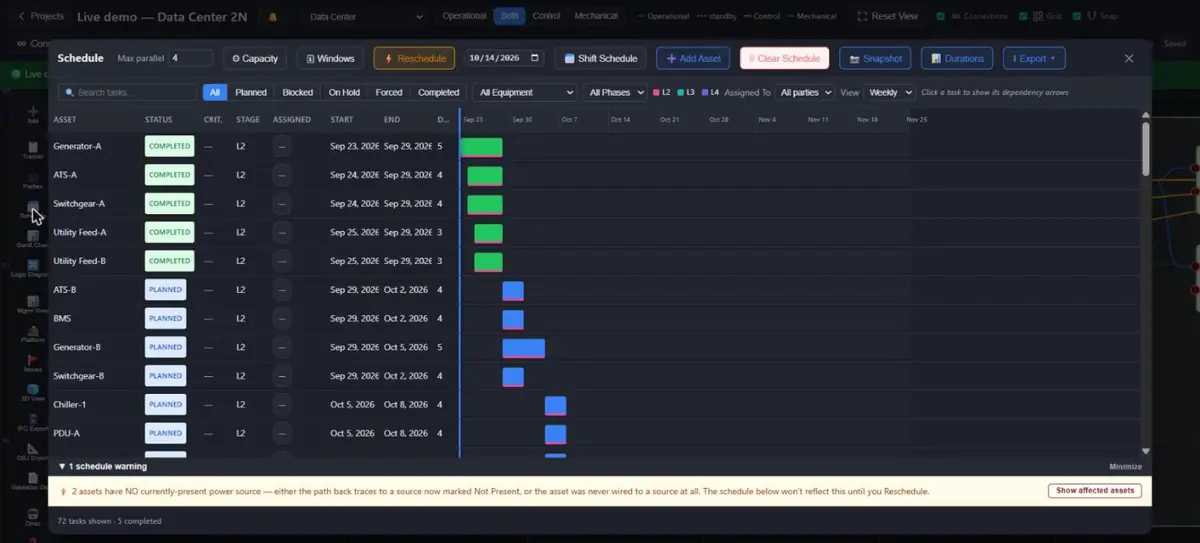 12345
12345- Reschedule: rebuild the plan from the current wiring and durations
- Filters: status, equipment, phase, party, view
- Status of each task: completed, planned, blocked, on hold
- Gantt bars, coloured by phase
- Warnings, such as assets with no present power source
How it works
Each asset's commissioning is broken into stage tasks. The engine advances a simulated calendar day by day, starting whatever's ready and allowed by capacity, until every task is scheduled.
Redundancy-aware dependencies
A downstream asset's task needs at least one ready upstream feed, not necessarily every one — so N+1/2N designs aren't unfairly blocked by a single slow upstream asset (OR semantics), while a genuinely single-path dependency still requires that one feed (AND semantics). This applies on both the operational and control layers, including the L4-surroundings gate: L4 additionally requires L2 complete on every downstream asset and every asset sharing the same room.
Control-before-mains, per asset
For any asset that genuinely has control-layer input ports with real incoming connections (most assets have zero control ports by default and are unaffected), whichever asset feeds that control input must be scheduled ahead of whichever asset feeds that same asset's mains/operational input — matching real-world commissioning practice, where an asset like a numerical relay needs control power before it can be mains-tested. This is a scheduler-only dependency, evaluated per destination asset, not project-wide (feeding one asset's control input never gates a different, unrelated asset's mains work). Mains On and Control On are a visual status pair on the canvas with no dependency between the two checkboxes (see the Commissioning Tracker manual). The same control-readiness requirement also gates L3 (Startup) from starting at all whenever L4 is still an asset's later final stage.
AC-auxiliary control connections
A control-layer connection can be marked AC Auxiliary (select the connection on the canvas and tick the checkbox in its info panel) for LV auxiliary circuits — heaters, lighting inside a cabinet — that are wired on the control layer but aren't real DC control power. An AC-auxiliary connection still needs to be commissioned before the destination asset's own final stage can complete, but it's excluded from the two rules above (control-before-mains and the L3-startup gate), since heaters/lighting don't logically satisfy "is real DC control power live." Leave the checkbox unticked (the default) for a genuine DC control connection, where both rules above apply normally.
Phase-lockstep grouping
Equipment explicitly grouped to move through stages together (e.g. a redundant pair meant to be commissioned in step) is scheduled as a batch rather than independently.
Shared (joint) tasks at any stage — asset groups
Any asset group in ⚙ Capacity settings (any assets, any type, any room) can turn one or more of its stages into a single shared task for the whole group. In the group editor, tick the stages under "Shared (joint) task at:" — L2, L3, L4 and/or Final stage (Joint Final Test). A ticked stage appears in the Gantt once, as "<group label> (Joint L3)", with the longest member duration and every member's assigned parties; it completes when every member's own stage is signed off. Unticked stages stay per-asset, so a T-off can still have a shared final test only, or a bay can install (L2) and start up (L3) as one activity and then be energized asset by asset. "Final stage" is kept as its own tick because a member with Final Stage Not Required has a different final slot than its siblings — that tick always means "whatever each member's final stage is". Requires 2+ Available members; stages waived project-wide are ignored.
Sections (tagging checklists) in the schedule
Assets signed off together through a tagging checklist form a section. The schedule treats each asset as it always did — own tasks, own dependencies, own durations — and uses the section in two optional, read-mostly ways. The 🏷 Sections button (shown when the project has a tagging checklist) lists each section with its section date (the latest date its assets land, the earliest the tag-out can happen), who lands last, and how long the first finisher waits. And Guide by sections, off by default, uses the section as a priority hint: when two ready tasks compete for a free slot, every task of a section takes the section's longest remaining path as its priority, so the assets of a section are pulled forward together instead of the last one trailing. Only the order inside the queue changes — never a dependency, a duration or a capacity limit — and it takes effect at the next ⚡ Reschedule. Compare the end dates with it on and off before keeping it. A project with no tagging checklist is scheduled identically either way.
Durations
Each task's length resolves from: a per-equipment-type default table (110 equipment types, plus a generic fallback), an optional per-asset manual duration override, and a per-asset size/scope multiplier (default 1 — for a larger-than-typical instance of a type, e.g. an oversized switchgear lineup that needs more L2/L3 time than a typical one of that same equipment type). Set the multiplier on one asset directly in its properties panel, or select several assets on the canvas (marquee or Ctrl/Cmd-click) and use the toolbar's "Set Duration Multiplier…" button to apply one value to all of them at once — or ask Dirac ("set UPS-A duration to 5 days") for the flat-duration override. All three set the same value, so they can never disagree.
Gantt views
The Scheduler panel includes: a search/status/equipment/phase filter bar, a date-scaled ruler with Daily/Weekly/Monthly granularity (each tick is clipped to its own cell so Daily view stays a readable scale instead of a smear of overlapping date labels), resizable left-panel columns (drag the small handle on the right edge of any column header — Asset, Status, Criticality, Stage, Assigned, Start, End, Days — to widen or narrow it; widths reset to default next time you open the Scheduler, they aren't saved with the project), an SVG dependency-arrow overlay, a Blocked-Reason/Criticality/Notes/Hold field set per task, and baseline snapshot + ghost-bar comparison (snapshot the current plan, keep working, and see both against each other).
Dependency-conflict warnings
If the engine has to force-schedule a task before all of its dependencies are actually met — usually a genuine circular dependency, or a very long stalled chain — a warning banner appears at the bottom of the Scheduler panel, below the Gantt grid and just above the task-count footer.
Click "🧠 Explain (Dirac)" on the banner to expand a plain-language breakdown naming the specific asset/stage that was force-scheduled and exactly which upstream asset/stage(s) it was still waiting on — so you can tell a real circular dependency (which needs a wiring fix on the canvas) apart from ordinary pending work that just hasn't finished yet.
Power-path warning: assets with no present source
A separate automatic warning — no cascade run, no Reschedule needed — appears whenever any asset on the schedule currently has no physically present power source at all, in either of two distinct forms: its operational-layer path traces back to a source that's marked NOT PRESENT (not Available), or it has an operational input port but was never wired to any source at all. Un-finishing the only MV bus feeding a downstream set triggers the first case immediately. The trace runs on the operational-layer topology only — control- and mechanical-layer links never count as a power path. The same condition also auto-escalates the affected source to a CRITICAL gate in Management View, so the schedule warning and the Gates tab always agree. Click "Show affected assets" to expand the list, where each asset is labeled with which of the two cases applies. Power sources themselves — utility feeds and generators — are never listed as "not wired to any source": their input ports face the grid or the fuel supply, not another asset, so an unwired input on one of them is normal.
Circular dependency detection & temp-generator placement
A separate, pre-emptive check runs on the predecessor graph before the day-by-day simulation starts at all: "🔁 N circular dependencies detected" appears if a genuine, unresolvable loop exists — one that no amount of rescheduling can ever clear on its own. This check is redundancy-aware: a bus-tie pair where each side ALSO has its own independent alternate feed is not flagged, since either side can resolve through its own real path. Only a loop with no real escape anywhere in it counts. Click "🧠 Explain (Dirac)" to see the actual loop named, asset by asset.
Two things can fix a genuine loop, and Dirac can do either:
Ask "why can't this clear" (out-of-scope case)
If the loop's members ultimately depend on a source that will never be signed off in this project, Dirac names the best insertion point for a temporary generator — read-only, it describes the fix rather than making it.
Ask "place a temp generator to break this cycle" (raw cycle case)
For a genuine raw cycle with no real source anywhere in the loop, Dirac finds the actual minimal loop and places a new temporary generator into it directly, after your confirmation — see "Temporary sources & target dates" below for what that placement looks like.
Temporary sources & target dates
Any asset can be flagged Temporary in its Properties panel (a small orange "TEMP" badge marks it everywhere on the canvas) — a manual label for a bridge/interim source that isn't meant to stay forever, so it's never mistaken for a permanent one. Any asset can also carry a Target Date — a plain per-asset deadline, also set in the Properties panel; nothing computes or defaults it, and setting it doesn't by itself change the schedule.
If an asset's currently projected completion runs later than its target date, a banner appears — and leads with the real verdict, not just a flat "later than target":
- ⛔ NOT achievable — the true best-case duration (the critical path to that asset, ignoring calendar/capacity limits entirely) already exceeds the working days actually available between today and the target. Shortening durations elsewhere won't help; only cutting time off that specific path will. The expanded detail names the longest-duration tasks on that path as the concrete shortening candidates.
- 📅 Achievable but late — the critical path fits inside the available days, so the current lateness is a scheduling/capacity artifact (contention, ordering, a Parallel Capacity Window limit), not a duration problem. Look there instead of shortening anything.
Ask Dirac explain the target date risk for the identical breakdown in chat form.
Add Asset (from the Scheduler)
The Scheduler panel's "+ Add Asset" button creates a new canvas asset without leaving the Schedule Manager — pick a name and (optionally) an equipment type, then tick whichever stages it has ALREADY reached in reality (or use "⚡ Mark fully complete & energized" as a one-click shortcut for equipment that's fully done, like a temp generator that's already energized). This deliberately bypasses the normal one-stage-at-a-time checkbox cascade — it's a backfill tool for equipment that's genuinely already at that point, not a substitute for ticking real day-to-day progress on the canvas or Tracker.
Dirac uses this same "start already complete" capability when it places a temporary generator on your behalf — it lets a bridge asset skip the full commissioning workflow (checklists, issue tracking), since it was never meant to be a long-term, freshly-commissioned piece of equipment.
Dragging / rescheduling
Drag any planned/forced bar left or right to pin an earliest-start date for that task — a small purple marker on the bar's left edge shows a pin is active, and the task detail modal shows the pinned date with a "Clear manual date" button. Completed and on-hold bars aren't draggable.
- Dragging a bar moves only that one bar. Nothing else on the Gantt shifts as a side effect. If the new position now starts before one of its dependencies finishes (in the frozen view), a "⚠ N task(s) ... shown starting before a dependency finishes" banner appears, naming the affected task(s) — this is informational only, never auto-corrected.
- A new/changed/removed asset shows up as a drift count ("🛈 N schedule change(s) on the canvas since the last Reschedule") rather than silently repositioning anything — the frozen Gantt keeps showing exactly what it showed before, until you act on it.
- Only clicking ⚡ Reschedule (or 📅 Shift Schedule) re-runs the real simulation — that's the one action that reads the current canvas/dependency state fresh, honors every drag pin as a floor, and re-freezes a brand-new snapshot.
- Structural circular-dependency detection and target-date-risk checking are NOT frozen — both still update live on every render, since they're pure read-only analyses of current state, not repositioning.
Assigned To
Each task shows its responsible party, populated from the asset's stage-party assignment (or its general responsible party as a fallback), visible both in the task list and its detail modal.
Parallel task limits
A global max-parallel-tasks cap, plus optional per-equipment-type overrides (a stricter cap for a specific type even under a higher global limit). Set either from the Scheduler panel, or ask Dirac ("set parallel tasks to 4").
Time/phase-windowed capacity
Layer time-boxed or phase-boxed overrides on top of the flat limits above — "between these dates" or "during this phase," with an optional per-equipment-type and per-asset-group override within the window, including zero-capacity (blackout) windows for either an equipment type or a specific named list of assets. Every window (and its Asset Groups) is saved with the project itself, not per-browser, so it's identical for anyone who opens the project. If more than one window applies on a given day, the first match wins; any uncovered day uses the flat limits. Windows are edited directly in the Scheduler panel's capacity section, or by asking Dirac to list or add them.
Duration import/export
The Scheduler panel's "📊 Durations" button opens a 3-tab tool: Export Template downloads every current task's duration (plus a "Dirac Learned (Days)" column showing what's already been learned for that equipment type/stage); Import & Review accepts that file back (or any CSV/XLSX with Task ID/Asset Name/Stage/Duration columns), diffs it against the current schedule, flags each change (match/ok/caution/danger relative to what Dirac already knows), and lets you selectively apply the ones you want; Dirac Learning lists every equipment-type + stage combination Dirac has learned a correction for, with the learned figure and correction count, plus a Clear History action.
Every applied correction blends 70/30 into that equipment type + stage's stored figure (saved in your browser, shared across every project you open there), and future schedules for that equipment type default to the learned number instead of the static per-equipment-type table, until corrected again.
Watching the schedule play out — Export Animation & 3D Playback
Two related ways to watch commissioning progress unfold day by day against the plan, both driven by the same date logic: a scheduled stage reads "not yet" until the day its task is due to finish, then shows that stage's real color; an asset with nothing scheduled for a stage just shows its real current stage color the whole time (this is a projection against the plan, not a replay of when things were actually signed off).
Export Animation — the Scheduler panel's Export menu includes "Export Animation," which downloads a single self-contained HTML file (no login, no server, works offline) with a day-by-day slider and sidebar explaining what's happening on each day. Good for sending to someone without access to the live project, or for a presentation.
3D Schedule Playback — the same day-by-day coloring, live inside the desktop 3D Viewer, no download needed. Open the 3D View from the canvas sidebar and click "🎞️ Playback" in the toolbar to open a date slider with Prev / Play / Next controls, right there in the 3D scene. Requires a saved schedule (run ⚡ Reschedule at least once) — on a project with no saved schedule, Playback shows today's real colors with nothing to scrub.
Talking to Dirac about the schedule
| You can ask | What happens |
|---|---|
| "What does UPS-A depend on?" | Reports direct upstream dependencies (read-only). |
| "Show schedule summary" / "get schedule summary" | Current schedule status at a glance. |
| "What capacity windows are set?" | Lists current time/phase-windowed overrides. |
| "Set UPS-A duration to 5 days" | Staged for confirmation, then applied. |
| "What's blocking handover, and set UPS-A's duration to 5 days" | A single compound request — Dirac reads the blocking data, reasons over it, then stages the duration change. See the Dirac AI Manual's "Multi-step commands." |
| "Plan this with me" | Opens Dirac's guided planning interview: work items → "what must be finished before X?" (Field/operational wires) → "which approval before X?" (Office/control wires) → review → "apply" draws the plan. Press ⚡ Reschedule afterwards to see the sequence. Built for Project Management Only mode and for anyone who'd rather answer questions than draw wires. |
| "Why can't this circular dependency clear?" | Names the best insertion point if the loop depends on an out-of-scope source (read-only). |
| "Place a temp generator to break this cycle" | Finds the actual minimal raw-cycle loop and stages placing a new, already-complete temporary generator into it for your confirmation. |
| "Explain the target date risk" | States whether each at-risk asset's target is achievable at all, and names shortening candidates if not. |
FAQ
Does the Scheduler work for a plain project plan (no electrical equipment)?
Yes — in Project Management Only mode a wire on the Field layer is "must be finished before" and a wire on the Office layer is "needs this decision/approval first"; the scheduler treats them exactly like operational and control wires. The quickest way to build such a plan is Dirac's plan this with me interview. Stage names in that mode are Design / Procure / Install / Test (see the Tracker manual).
Why did the schedule change when I didn't touch anything obvious?
It recomputes live from current project state every time it's opened — a duration, wiring, capacity, or stage-progress change anywhere shows up the next time you look.
Can I drag a task bar to a new date?
Yes — drag any planned/forced bar to pin an earliest-start date; see Dragging / rescheduling above. It's a floor, not a hard override, so a real Reschedule can still push it later. Dragging only moves that one bar — it doesn't reposition anything else, and only shows a warning (never an auto-correction) if the new position conflicts with a dependency.
Can I bulk-import durations from a spreadsheet?
Yes — the Scheduler panel's "📊 Durations" tool exports a template, accepts CSV/XLSX re-import with a diff/review step, and Dirac learns from accepted corrections over time; see Duration import/export above.
Can I resize the columns in the task list?
Yes — drag the small handle on the right edge of any column header (Asset, Status, Criticality, Stage, Assigned, Start, End, Days). Widths reset to the default next time you open the Scheduler; they aren't saved with the project.
Why do I only see arrows for one task, not the whole schedule?
Click a task row to select it — its dependency arrows (both what it's waiting on and what it unblocks) draw over the Gantt until you select another row or click "✕ Clear selection." Showing every arrow for every task at once would be unreadable on any project with real dependency depth; see Gantt views above.
Why does the warning about unmet dependencies appear at the bottom instead of the top?
It sits below the Gantt grid, next to the task-count footer, so it doesn't push the task rows down or become the first thing you see before you've looked at the schedule; see Dependency-conflict warnings above.
Does Clear Schedule really empty the Gantt, or just reset overrides?
It genuinely empties it — the Gantt shows a real empty state until you explicitly click ⚡ Reschedule. Under the hood it clears every manual adjustment (drag-pinned dates, Hold/Criticality/Notes, and the baseline snapshot); capacity/parallel-limit settings are untouched. It also uses the app's own in-panel confirm dialog rather than the browser's native popup, since a native popup can freeze the tab or silently fail to appear if the browser has "prevent additional dialogs" enabled.
Why does Dirac say a circular dependency isn't clearable, and what actually fixes it?
Two different root causes look the same in the banner but need different fixes: if every path back ultimately depends on a source that will never be signed off in this project, ask "why can't this clear" — Dirac describes the fix without making it. If it's a genuine raw cycle with no real source anywhere in the loop, ask Dirac to "place a temp generator to break this cycle" — it finds the loop and places a new, already-complete temporary generator into it for you, after confirmation. See Circular dependency detection & temp-generator placement above.
Do I have to build a temp generator's checklists/issues by hand once Dirac places one?
No — both "Add Asset" and Dirac's temp-generator placement start it fully complete (all four stages force-signed-off) and flagged Temporary, exactly because a bridge asset standing in for a permanent source isn't meant to go through a full fresh commissioning workflow. See Add Asset and Temporary sources & target dates above.
Massive Dynamic · Scheduling Manual